Back
Categories
How to Share a Post to Your Instagram Story: The Repost Guide
Marion Carneiro
You post a carousel and it gets 200 views. You reshare it to your Story and it gets 800 more without posting anything new. Here is the complete guide to Story reposts, plus how to use them for your business.
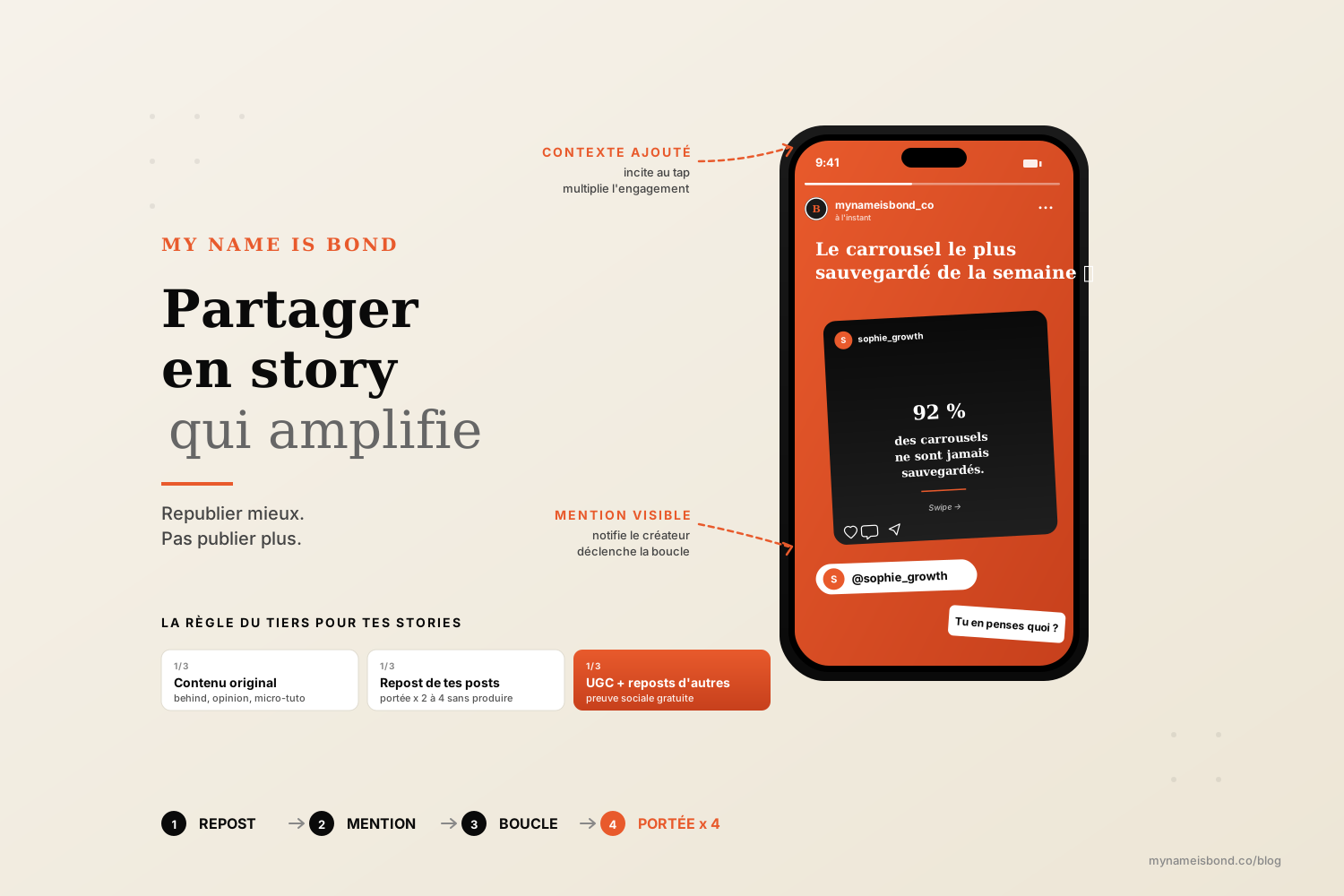
You post a carousel.
It gets 200 views.
You reshare it to your Story. It gets 800 more, without posting anything else.
Welcome to the most underused lever on Instagram in 2026. Reposting to your Story is the only way to increase a piece of content's reach without republishing it, without cluttering your feed and without extra production. It also turns content other people publish about you (UGC, mentions, client testimonials) into social proof that works for free.
This guide gives you the complete how-to: reposting a feed post to your Story, reposting a Story you are tagged in (or not), the technical conditions and personalization. Then Bond's approach: how to make it a system that grows your reach and qualifies your audience without posting more.
What is an Instagram Story repost?
A Story repost means sharing an existing post or Story in your own Story, whether it comes from your own account or from someone else's. The original post appears in your Story as an interactive thumbnail, with the source account's @username clearly visible.
There are three distinct use cases in 2026:
Reposting your own feed post (your posts, carousels, Reels). The simplest. Always allowed.
Reposting another account's feed post (a public post, carousel or Reel). Possible if the source account is public.
Reposting another account's Story. Possible if you are mentioned in the Story, or if the creator has turned on resharing.
In every case, the repost keeps the link to the original post. When someone taps the thumbnail in your Story, they are taken to the original post. That is what makes a repost a reach tool rather than duplication.
How long a repost lasts.
Like any Story, your repost lasts 24 hours. After that, it disappears, unless you add it to one of your Highlights to make it permanent.
How to share a feed post to your Story
Three taps, on mobile.
Open the post you want to share (your own, or one from another public account).
Tap the paper airplane icon below the post (next to the heart, comment and save icons).
In the menu that opens, select "Add to story".
The Story editor opens. The post appears as a thumbnail you can resize, move and annotate (text, stickers, drawings) before publishing.
When "Add to story" doesn't appear.
There are several possible causes:
The source account is private. Reposting is not allowed, and there is no legitimate workaround.
The post was published before resharing was turned on for that account (a specific setting, see below).
You are trying to share a post with age restrictions or restricted to certain countries.
The creator has explicitly turned off sharing in that post's advanced settings.
If the source post meets all the conditions and the option still doesn't appear, the cause is usually a temporary cache bug. Close the app, reopen it and try again.
Reposting someone else's Story (tagged or not)
There are two distinct scenarios in 2026.
Case 1: you are mentioned in the Story (tagged @your_account).
The creator has tagged you in their Story (a mention of your @username). Instagram automatically sends you a DM with the Story and an "Add to story" button.
How to do it:
Go to your direct messages (the paper airplane icon at the top right).
Find the Instagram DM notifying you of the tag.
Tap "Add to story".
The Story you were tagged in opens in your editor, ready to publish.
Case 2: you are not tagged but want to repost another account's Story.
Since 2023, Instagram has let creators allow other accounts to reshare their Stories, even without an explicit tag. The setting has several options:
Open to all of the source account's followers.
Open to Close Friends only.
Off (the default on new accounts).
If the creator has turned this on, a paper airplane icon appears at the bottom of their Story when you view it. Tap it, then "Add to story".
If the creator hasn't turned this on, you cannot technically repost their Story. You can take a screenshot and reshare it manually, but this is frowned upon and could lead the creator to report you.
The conditions (public account, resharing permission)
Five conditions to know to understand why a repost works or doesn't.
1. The source account must be public.
This is the main condition. A private account cannot be reposted. If you want your posts to be reshareable, your account needs to be public.
2. The original post or Story must not be restricted.
Some posts are restricted by their creator: age restrictions, country restrictions, or sharing explicitly turned off. Reposting will not work in these cases.
3. To repost a Story without being tagged, the creator must have turned on resharing.
This is an individual setting on the creator's side. It has been off by default on new accounts since 2024.
4. Your account must not be restricted.
If you are shadowbanned or under a temporary action block, reposting may not work. It is rare, but documented.
5. Not all Reels can be shared to a Story.
Some Reels (especially those with music under strict licensing) do not offer the "Add to story" option. This limitation comes from music rights, not from your account.
Turning on resharing for your own Stories.
Settings, then Privacy, then Story, then "Allow resharing to story". Three options:
On: any follower can repost your Stories.
Close Friends only: only accounts on your green list can repost.
Off: nobody can repost your Stories unless you explicitly tag them.
Bond's recommendation: turn on resharing for everyone. It is a free reach lever, and keeping it off works against you.
Personalizing the share (text, stickers, mentions)
A plain repost works. A personalized repost performs 2 to 3 times better. Here are five additions to use every time.
1. Add a line of text above the thumbnail.
Rather than leaving the thumbnail alone, add a sentence of context:
"The most saved carousel of the week, thanks everyone ✨"
"Sophie posted this, it's exactly what I was thinking"
"What I never miss in my Monday Stories"
This sentence gives the repost context and encourages people to tap.
2. Add a question or poll sticker.
Above or below the thumbnail: "What do you think?" or an "Agree / disagree" poll. You turn passive viewing into active interaction. That engagement boosts the reach of your own Story.
3. Mention the original creator.
The @username tag appears automatically, but you can also add a more visible mention sticker. The creator gets a notification, which makes it more likely they will reshare your Story in turn (a cross-reach loop).
4. Use a strategic hashtag sticker.
A relevant hashtag in your Story can get you into that hashtag's explore page (visibility beyond your followers). Use it sparingly: 1 hashtag per Story at most, or it gets cluttered.
5. Add a clear CTA.
"Tap to see the full post" or "DM me if you want to talk about it". You turn a repost into a way into your account.
How to see who shared your Story
When someone shares your Story to their own Story, you usually get an Instagram notification. To see the full list of accounts that interacted with your Story:
Open your Story while it is live (the first 24 hours).
Swipe up on your Story.
You see the list of viewers (who watched), with a special indicator for accounts that shared, replied or reacted.
For Stories that contain one of your reshared posts:
Reshares in other accounts' Stories: Instagram sends you a DM notification when someone shares your post. You can follow the list from the Notifications tab.
Detailed stats: available in the original post's Insights, under "Shares" and "Accounts reached through shares".
Business use: UGC and social proof for reach (Bond's approach)
This is where reposting goes from a handy feature to a business lever.
The principle: reshare social proof systematically.
Every time a client, partner or follower publishes positive content about you (a testimonial, a mention, a recommendation), you have material to use without producing anything. You get three benefits at once:
You increase your account's reach with existing content.
You produce social proof that is more credible than a testimonial you write yourself (the voice comes from outside).
You strengthen the relationship with the original creator, who feels seen and amplified.
The 5 types of UGC to repost systematically.
Client testimonials: a client posts a positive Story about your product or service. Reshare it immediately with a "Thank you [@name]" sticker.
Mentions in recommendations: someone recommends you in their Story or in a comment. Reshare it.
Photos of your products: a client posts a photo of your product in use. This is gold for e-commerce brands.
Client results with numbers: a client publishes their results after using your method. The repost is proof of impact.
Reels from your partners when they mention you or talk about your industry in a complementary way.
The ideal schedule.
In our Instagram growth programs, we use a set rhythm: 1 to 3 reposts per day, mixed with your original content. The repost becomes a format in its own right, not a filler.
The rule of thirds.
Across your week of Stories, aim for:
1/3 original content (behind the scenes, opinions, micro-tutorials).
1/3 promotion of your posts (resharing your own carousels and Reels).
1/3 UGC and reposts from other accounts (social proof, partners).
This balance prevents promotional fatigue and increases your Stories' completion rate.
The loop effect.
Reposting UGC often starts a virtuous circle. You repost a client, who is touched and publishes new content about you. You repost again, their circle discovers you, and some of those people follow you and become prospects.
We broke down this mechanism in detail in our guide: Instagram acquisition: captivate and retain your followers. To go further on the storytelling side of reposts and UGC, we also covered: the secrets of Instagram storytelling.
The Bond rule: posting more is not the answer. Reposting better, and reposting what others have published about you, is.
FAQ
How do I repost an Instagram Story I'm tagged in?
When someone tags you (mentions your @username) in their Story, Instagram automatically sends you a DM with the Story and an "Add to story" button. Go to your direct messages (the paper airplane icon at the top right of your feed), find the tag notification and tap "Add to story". The Story editor opens with the repost ready to publish. You can resize it, move it and annotate it (text, stickers, polls) before publishing. The reshared Story keeps the link to the original Story, and the creator's @username stays visible.
How do I share a post to my Instagram Story?
Three taps on mobile. 1. Open the post you want to share (your own or one from another public account). 2. Tap the paper airplane icon below the post (next to the heart, comment and save icons). 3. Select "Add to story" in the menu that opens. The post appears in the Story editor as an interactive thumbnail. You can resize it, move it and add text, stickers or drawings before publishing. If "Add to story" doesn't appear, it is usually because the source account is private, the creator has turned off sharing, or the post contains restricted elements (music under strict licensing, content restricted by country).
Can I see who shared my Instagram Story?
Yes, partly. When someone shares your Story in their own Story, Instagram sends you a notification in your DMs and in the Notifications tab. To see all the interactions on your Story, open it while it is live (the first 24 hours) and swipe up to see the list of viewers, with a special indicator for those who replied, reacted or shared. For detailed stats on shares of one of your posts in other accounts' Stories, go to the post's Insights, under "Shares" and "Accounts reached through shares". Note: Instagram does not name every account that shared your post, only the total count and the first shares received.
Why can't I share a post to my Instagram Story?
There are 5 main causes.
1. The source account is private. A private account cannot be reposted. This is the most common cause.
2. The original post or Story is restricted by its creator (age restriction, country restriction, sharing explicitly turned off in the advanced settings).
3. The Reel contains music under strict licensing. Some Reels cannot be reshared because of music rights.
4. Your account is under an action block or temporary shadowban. Rare, but documented.
5. A temporary Instagram cache bug. If every condition is met and the option still doesn't appear, close the app, reopen it and try again. If the problem continues, check your account's status in Settings, then "Account Status".

Instagram growth
securely and simply.
Save time.
Acquire new customers.
Boost your growth now.