Back
Categories
Instagram Edits: The Video Editing App for Your Reels
Marion Carneiro
A year after launch, Instagram Edits is a serious alternative to CapCut: free, no watermark and built into the Meta ecosystem. Here is how to use it and, above all, how to edit Reels that actually bring in reach.
You use CapCut.
You pay for the subscription to remove the watermark.
Meanwhile, Instagram has released an app that does the same thing, for free, with no watermark and built into its ecosystem. It has received more than 130 new features in a year, delivered through weekly updates.
Meta launched Instagram Edits on April 22, 2025 as a direct strategic response to CapCut's dominance in mobile video editing. A year later, the app is mature enough to be the default choice for serious creators who produce content for Instagram.
This guide gives you the exact definition, a step-by-step tutorial, a direct comparison with CapCut and, above all, the Bond approach: how to edit a Reel that does more than look good, one that holds attention, gets saves and brings in DMs. The point is not Edits' features. It is what you do with them.
What is Instagram Edits?
Instagram Edits is a standalone mobile video editing app developed and published by Meta. Launched on April 22, 2025, it is free, has no subscription and adds no watermark when you export.
In practice, it is an editing app that lets you create vertical videos (Reels format) up to 10 minutes long with a set of built-in professional tools. Edits is not a feature inside Instagram but a separate app you download from the App Store or Google Play.
Who it is for: Reels creators.
The whole app is designed around the vertical 9:16 format. The timeline is set up for this ratio, the default export works for Reels and Stories, and the dashboard offers stats specific to Instagram formats.
The strategy: replacing CapCut.
CapCut, owned by ByteDance (TikTok's parent company), dominated mobile video editing for Reels creators until 2025. Meta released Edits to bring these creators back into its ecosystem. Being completely free (no watermark, no limits, no ads) and integrated directly with Instagram are the two strategic levers of this move.
How fast it evolves.
Meta says Edits received more than 130 new features in its first year, delivered through weekly updates. It launched with a minimal version in April 2025 and iterated quickly based on real use. The product strategy looks more like a SaaS than a traditional app.
How to download Instagram Edits and get started
Three steps to install and launch Edits in 2026.
Step 1: download the app.
iOS: open the App Store, search for Edits by Instagram and download it. It is an official app from Meta Platforms.
Android: open Google Play, search for Edits and download it. Same publisher.
The app takes up about 250 MB when first installed. It works on iOS 15+ and Android 11+.
Step 2: log in with Instagram.
The first time you open it, Edits offers to log you in with your existing Instagram account. There is no need to create a new account or remember another password. Logging in enables project syncing between Edits and Instagram.
If you do not want to connect your Instagram account (a rare case), you can use Edits on its own with an email account. You lose direct publishing to Instagram, but you keep all the editing features.
Step 3: allow access.
The app asks for access to:
Photo and video gallery: to import your media.
Camera: to record directly in the app.
Microphone: for audio recordings.
Notifications: optional, for reminders about drafts in progress.
Once you confirm, you land on the home screen with two options: New project or Resume a draft.
Instagram Edits features
Edits covers the essentials of mobile editing in 2026, with a level of quality that now rivals CapCut Pro.
Multi-track timeline.
The main editor is a timeline adapted to mobile with several stacked tracks: main video, overlay video, text, audio and effects. You can add, move, trim and layer elements. The editing level is equivalent to a light desktop editor.
Automatic captions (AI).
One of the signature features in 2026: automatic caption generation in French, English and 30+ other languages. Accuracy is very good on standard speech and less reliable on industry jargon. You can edit the captions after they are generated and change the font, size and animation. This is critical for Reels, since most viewers watch without sound.
Green screen.
You can replace your background in real time with the green screen feature. You do not need a physical green screen: the AI cuts out your subject automatically, even if the background is not uniform. Creators use it widely to place their face over a chart, a screenshot or a scene.
Picture in picture.
You can overlay one video on another. A typical use case: your face in a circle in a corner, over a product demo or a screen share.
4K export with no watermark.
You can export in up to 4K (3840 x 2160) or in the standard Reels format (1080 x 1920). No watermark, no ads and no length limit. This is the deciding argument against the free version of CapCut.
Additional AI tools in 2026:
Automatic subject cutout without a green screen.
Animation of still photos (parallax effect).
Filter suggestions based on the detected content.
Automatic background noise removal.
Audio library.
Direct access to the same music library as Instagram Reels (native integration). You choose a track in Edits and it is applied to the Reel with no risk of a copyright block when you publish.
Built-in video recording.
Edits also lets you film directly in the app, with advanced settings: timer, grid, level, manual focus and exposure. It is useful for filming several takes in a row.
How to create a video in Edits (step by step)
The workflow for producing a Reel, in 7 steps.
Step 1: import or record.
On the home screen, tap "New project". Choose between:
Import from your gallery: select one or more clips.
Record in the app: use the built-in camera to film directly.
Step 2: trim and arrange.
You land on the timeline. Tap a clip to select it. Use the tools at the bottom of the screen: Trim, Split, Delete, Duplicate. Rearrange clips by dragging and dropping.
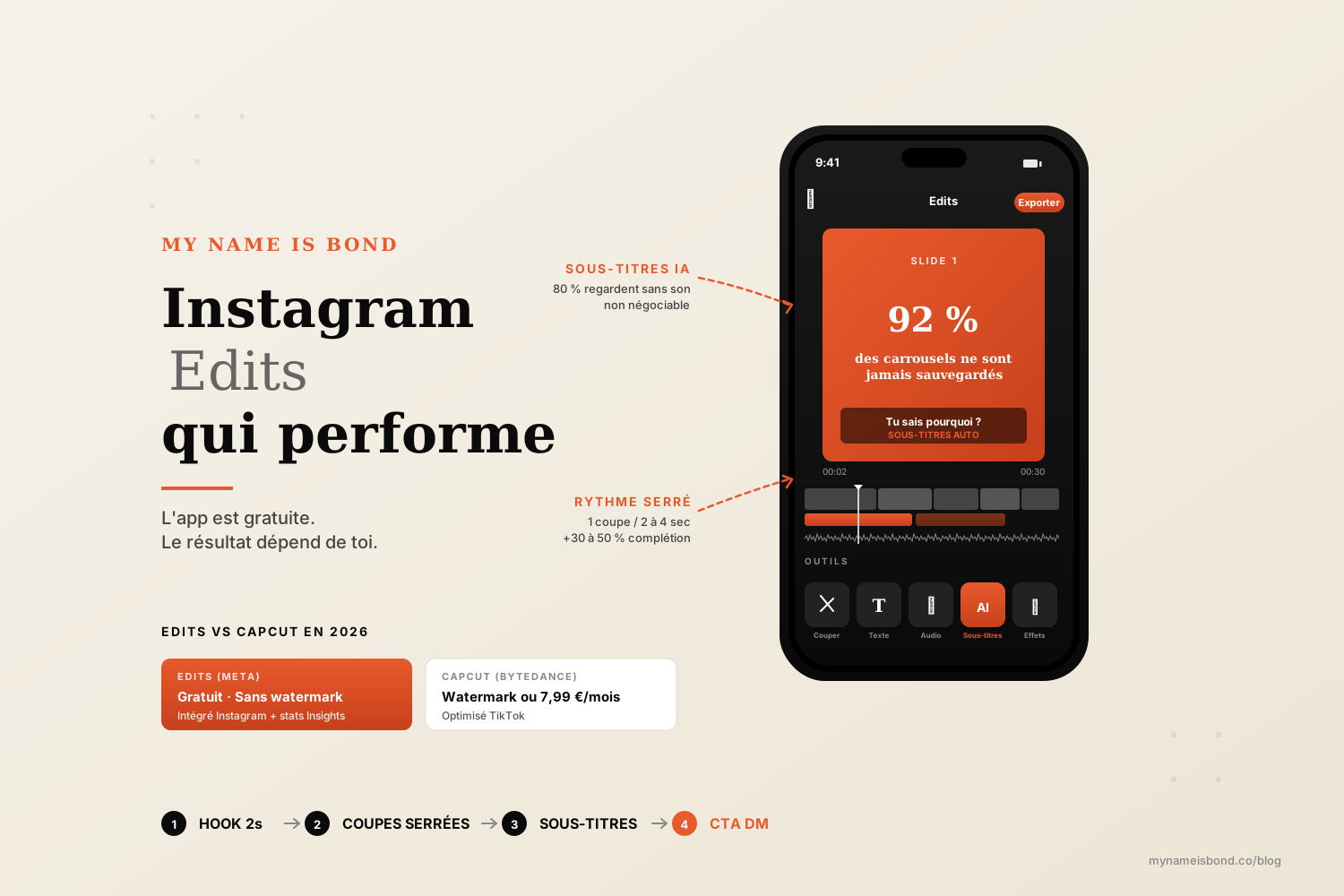
The rule for a Reel that performs: aim for a cut every 2 to 4 seconds. Any slower and you lose retention.
Step 3: add captions.
Tap "Add text", then "Auto captions". The AI scans your audio and generates captions in real time (5 to 30 seconds depending on length). Proofread and fix errors. Style them: font, color, animation.
On a Reel, this is essential: 80% of viewers watch without sound.
Step 4: add music.
Tap "Audio", then "Library". Search Instagram's music library (built into Edits). Select a track, adjust the volume and trim the start or end to fit your video. Keep the music at 20 to 30% volume if you have an important voiceover.
Step 5: effects, transitions and filters.
Optional, but they can improve readability:
Transitions between clips (cut, fade, zoom).
Color filters to give your videos a visual identity.
Occasional effects (slow motion, speed ramp).
Use them sparingly. Too many effects make a video look amateur.
Step 6: preview and export.
Tap "Preview" to watch the full result. If everything looks right, tap "Export". Choose the format:
Reels (1080 x 1920) by default.
4K if you want the best quality (larger file).
Step 7: publish.
Two options:
Publish directly to Instagram from Edits (native integration). The Reel is uploaded with the caption and hashtags you set in Edits.
Save to your gallery to publish later or elsewhere.
The Edits insights dashboard
This is one of the most useful and least used features in 2026.
Where to find it.
On the Edits home screen, open the "Insights" tab (chart icon). The dashboard brings together the performance of the Reels you published through Edits.
What it shows you:
Completion rate for each Reel (% of viewers who watch to the end).
Average watch time per Reel.
Hook performance (first 3 seconds vs the rest).
Comparisons between your Reels by length, format and style.
Personalized suggestions, for example: "Your 30-second Reels perform 2x better than your 60-second ones."
What it is for.
You can objectively identify which lengths, editing rhythms and formats work on your account, based on data rather than intuition. This is what turns Edits from a simple editing app into a tool for steering your content.
To understand how this data fits into the overall workings of the Reels algorithm, we broke it down here: the Instagram algorithm in 2026.
Editing a Reel that performs (the Bond approach)
The tool does not create the result. Here are the 5 editing settings that turn a Reel nobody watches into a Reel that brings in DMs.
1. A visual hook in the first 2 seconds.
Most Reels lose 70% of their audience after 3 seconds. The cause is almost always a weak visual hook. In Edits, your first clip should:
Show movement (not a still photo with a voiceover).
Display a large hook text within the first 0.5 seconds.
Promise a transformation, a result or a reveal.
Example: instead of "Hi, today I'm going to talk to you about...", use large text reading "92% of carousels are never saved" on a black background for 1 second, then cut to you explaining.
2. Tight editing rhythm.
Aim for a cut every 2 to 4 seconds on short Reels (15 to 45 seconds). In Edits, use the "Split" tool to systematically cut dead time (pauses, hesitations, verbal transitions). Tight editing increases completion rate by 30 to 50% on average.
3. Captions every time.
80% of Reels viewers watch without sound. Without captions, you lose 80% of your message. In Edits, generate them automatically and take care of the style: a bold sans-serif font, white text with a black outline, subtle animation (no bouncing), placed within the usable area (not in the bottom 250 px where Instagram puts its interface).
4. Music synced with your cuts.
Music with a clear beat gives you a rhythmic framework. Sync your cuts with the strong beats. Edits shows audio peaks on the timeline: tap a clip and drag it to line it up exactly with a beat. Even simple content instantly looks more professional.
5. A CTA in the last second.
The last shot of a Reel should give a clear action, and something more concrete than "Follow me":
"Comment AUDIT and I'll give you personalized feedback."
"DM me the word TEMPLATE to get mine."
"Tag someone who needs to see this."
This CTA generates DMs, and DMs lead to conversions. This is what we systematically set up with our clients in organic Instagram growth.
To go further on the narrative side of a Reel (beyond technical editing), we explored storytelling mechanics here: the secrets of Instagram storytelling.
The Bond rule on Edits: the tool is free, and what matters is how you use it. A Reel edited with 5 minutes of careful settings performs 3 to 5 times better than one edited in a hurry with 50 effects.
Edits vs CapCut
The factual comparison to know before choosing in 2026.
Criteria | Edits (Meta) | CapCut (ByteDance) |
|---|---|---|
Price | Completely free | Free with watermark + Pro subscription at 7.99 euros a month |
Watermark on export | None | "CapCut" watermark in the free version |
Best format | Instagram Reels and Stories | TikTok (but versatile) |
Music library | Built-in Instagram library | CapCut library |
Auto captions | Yes, 30+ languages | Yes, 30+ languages |
AI tools | Cutout, photo animation, filter suggestions | Cutout, beat sync, AI generation |
Stats dashboard | Yes (linked to Instagram Insights) | No |
Direct publishing to Instagram | Yes (native integration) | No (export, then upload) |
TikTok compatibility | Possible but not optimized | Optimized |
Updates | Weekly (130+ features in 1 year) | Monthly |
When to choose Edits.
If you mainly publish on Instagram (Reels, Stories), Edits is the default choice in 2026: free, no watermark, integrated, with a useful stats dashboard. It is our default recommendation at Bond.
When to keep CapCut.
If TikTok is your priority, CapCut is still optimized for that network (TikTok music library, viral effects, TikTok integration). If you publish across several platforms and TikTok is your main one, CapCut Pro is still worth it despite the cost.
For most B2B brands and French-speaking lifestyle creators, Instagram is the main platform, and Edits is enough.
FAQ
Is the Instagram Edits app free?
Yes, Edits is completely free. No subscription, no paid premium features and no ads in the app. Above all, no watermark on export, unlike the free version of CapCut, which adds a "CapCut" watermark in the bottom right of exported videos. This is one of Edits' key strategic advantages: Meta wants to bring creators back into its ecosystem by removing any cost barrier. Meta has said it intends to keep the app free, with no monetization planned.
Is Edits available on Android and iPhone?
Yes, Edits is available on both. On iOS, search for "Edits by Instagram" in the App Store (iOS 15+). On Android, search for "Edits" in the Google Play Store (Android 11+). The official publisher is Meta Platforms in both cases. The app takes up about 250 MB when first installed. Features are almost identical on both versions, with a few minor differences in AI effects (some features come to iOS before Android). Edits is not available on computers (Mac or Windows) in 2026: it is strictly a mobile app.
What is the difference between Edits and CapCut?
There are three major differences.
1. Price and watermark: Edits is completely free with no watermark on export. CapCut is free but adds a watermark, or charges about 8 euros a month to remove it.
2. Ecosystem: Edits is natively integrated with Instagram (direct publishing, Instagram music library, stats dashboard linked to Insights). CapCut belongs to ByteDance (TikTok's parent company) and is better integrated with TikTok.
3. AI tools and pace of updates: Edits received 130+ new features in a year (weekly updates). CapCut evolves more slowly but remains the reference for viral TikTok effects. If you mainly use Instagram, Edits is now the default choice in 2026. For TikTok, CapCut remains the better fit.
Can you post directly to Instagram from Edits?
Yes, this is one of its key integrations. When you connect Edits to your Instagram account (recommended the first time you open it), you can publish your Reel or Story directly from Edits, without going through your phone's gallery. The workflow: finish your edit in Edits, tap "Publish", choose the format (Reel, Story, post), add your caption and hashtags, and the upload to your Instagram account happens automatically. Benefits: no quality loss from an intermediate export, metadata is preserved, and performance stats flow back automatically into the Edits dashboard. If you publish on TikTok or elsewhere, you can export the file to your gallery and upload it manually to the other platform.
Instagram growth
securely and simply.
Save time.
Acquire new customers.
Boost your growth now.