Back
Categories
Instagram Reels Watch History: Find and Use What You Watch
Marion Carneiro
Instagram now keeps a history of every Reel you watched in the last 30 days. Here is how to access it, find a specific video and, above all, use this data to feed your own content strategy.
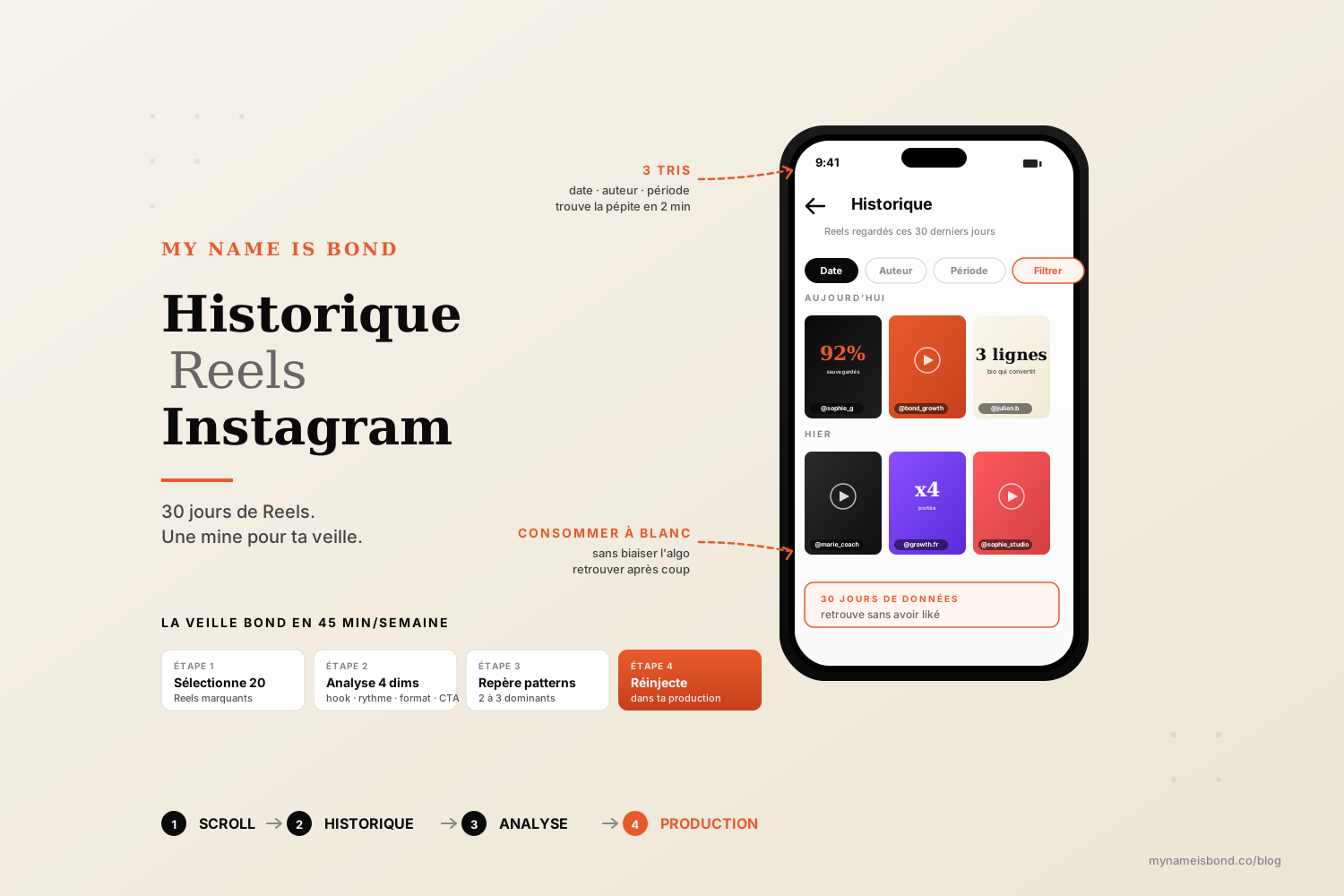
You saw a Reel.
Yesterday, the day before or last week. You remember the hook, the creator and almost the background music. But you cannot find the video again. You scroll back through your feed and search for the account, with no luck. The video is lost in the scroll.
For years, every Instagram user shared this frustration. Since late 2025, the problem is solved. Instagram has added a watch history feature for Reels, similar to YouTube's. You can find every Reel you viewed in the last 30 days, even the ones you did not like, save or share.
This guide explains where to find this history, how to use it to find a specific video and, above all, how to use it to feed your own content strategy. This history is more than a convenience: it is a goldmine of data on what works in your niche.
The Reels watch history feature (new)
Instagram rolled out Reels watch history gradually between late 2025 and early 2026. It was one of the most frequent requests since Reels launched in 2020: being able to find a video you watched without having to like or save it at the time.
How it works.
Every Reel you watch for more than a few seconds is automatically added to a personal history, accessible from your settings. This history keeps videos for 30 days. After that, Instagram deletes the entries automatically.
Features in 2026:
Retention period: a rolling 30 days.
Sorting: by date (newest first) or by author (grouped by account).
Date filter: you can select a custom range (for example, the last 7 days).
Manual deletion: you can remove a specific entry or clear the whole history at any time.
Privacy: the history is strictly personal. No other user can see it, not even the creators of the Reels you watched.
Why now?
There are two strategic reasons on Meta's side:
Bringing Reels in line with video platform standards (YouTube, TikTok). The lack of a watch history on Instagram was often cited as a gap compared with competitors.
Increasing time spent on Reels. Letting users rewatch content that stuck with them encourages them to come back, and the history also acts as an interest signal that feeds the recommendation algorithm.
To understand how the algorithm uses these signals in overall distribution, we covered it here: the Instagram algorithm in 2026.
Where to find your Instagram watch history
The exact path in 2026, in the Instagram mobile app.
Step by step:
Open the Instagram app.
Tap your profile picture at the bottom right.
Tap the three horizontal lines (≡) at the top right.
Select "Settings and privacy".
Find "Your activity" in the list.
In the "How you use Instagram" section, find "Watch history".
You will see a list of all the Reels you watched in the last 30 days.
On the web version (instagram.com), the path is similar but the Reels history is less complete: Meta focuses on the mobile experience, which accounts for more than 95% of Reels viewing.
If you cannot find the option:
Check that your Instagram app is up to date (an update is required for accounts that have not received the feature yet).
The option may have a different name depending on your interface language.
The option is available on professional and creator accounts. On some very new accounts (less than 30 days old), it may not be enabled yet.
What you can do (30 days, sorting, deleting)
Once you are in your watch history, several actions are available.
1. Browse chronologically.
By default, the history shows Reels from newest to oldest. You scroll through it like a normal feed, and you can tap each thumbnail to watch the video full screen again.
2. Sort by author.
You can switch to "grouped by account": all the Reels you watched from the same creator are grouped under their @username. This is useful to see which accounts you watch most, or to find all the content from a specific creator.
3. Filter by date range.
Use the "Filter" button at the top of the screen. You can choose:
Today: only today's Reels.
This week: the last 7 days.
Custom: you select an exact start and end date.
This is useful if you roughly remember when you saw a Reel ("it was last week").
4. Delete a specific entry.
Long-press a Reel in the list. A "Remove from history" option appears, and the entry disappears immediately. The original Reel stays online on the creator's account. Only your personal history is cleaned up.
5. Clear your entire history.
Use the "Clear all" button at the top right of the history screen and confirm. All entries are deleted at once. Note: this does not affect your algorithm recommendations (Instagram keeps that data separately for its algorithm), but it clears your visible history.
6. Turn off collection (advanced option).
In Settings, then Privacy, then "Activity data", you can choose not to keep your watch history. If you turn it off, you lose the feature (you can no longer find Reels), but Instagram still keeps an internal record for its own algorithms. So it is not a real opt-out, it only hides the history from you.
Find a Reel you didn't like or save
This is exactly the use case the feature was built for.
Before 2025, if you wanted to be sure you could find a Reel again, you had to:
Like it (it then appeared in your liked posts).
Save it (to a collection).
Send it to yourself by DM.
None of these options worked when you watched a lot of videos. If you watched 50 Reels in 20 minutes on the couch, you could not save them all.
With watch history, you can now:
Watch your feed normally, without interacting.
3 hours (or 3 days) later, open your watch history.
Scroll to the time you were watching.
Find the Reel you are looking for.
In 2026, this is the right habit: the less you interact, the more neutral the algorithm is in what it shows you. You can watch without telling the algorithm what you like, and use the history to go back to the content that stuck with you.
Tip: if you roughly know when you saw the Reel, use the date filter to save time. If you remember the creator, switch to sorting by author.
Use your watch history for creative research (the Bond approach)
This is where the feature goes from a user convenience to a strategic tool for creators.
If you produce Reels for your account (brand, creator, agency), your watch history becomes a qualitative database of what works in your niche, as long as you use it deliberately.
Bond's weekly research routine.
Once a week, for 45 minutes, open your Reels history and do the following exercise.
Step 1: select the 10 to 20 Reels that stuck with you.
Not the ones you liked, but the ones you still remember several days later. This is a strong signal: the Reel managed to leave an impression on your attention, which is rare in 2026.
Step 2: for each selected Reel, analyze 4 dimensions.
The hook (first 2 seconds). What was the opening line? What was the opening visual movement? Which camera angle?
The pacing. Roughly how many cuts per second? Cuts on the music beat or not? Text on screen the whole time or only at certain moments?
The content format. Tutorial? Storytelling? Debunking a common belief? POV? Numbered list? Client case?
The CTA. What action does the Reel ask for at the end? Follow, comment, DM, link in bio?
Step 3: note the recurring patterns.
Out of 20 memorable Reels, you will often find 2 or 3 dominant patterns: a type of hook, a specific pacing, a narrative format. These patterns are what works in your niche in 2026, observed without an algorithmic filter.
Step 4: use them in your own production.
Do not copy. Use them to inspire your structure. If you notice that "1 shocking number + 3-point breakdown" Reels perform in your niche, you can structure 2 or 3 of your next Reels around that pattern. The content is yours, and the narrative structure is inspired by the best.
Step 5: save your research.
Write down in Notion or a Google Doc:
The 5 most recurring patterns you observed.
The 10 most inspiring accounts you found.
3 Reel ideas you can produce in the next 2 weeks.
This is the structured research we set up on every account we support in Instagram growth. To go further on the narrative mechanics that make some Reels memorable and others forgettable: the secrets of Instagram storytelling.
The Bond rule on watch history:
It is not a nostalgia tool ("oh, I found that cool video again"). It is a production tool that gives you a raw, unfiltered view of what holds attention on Instagram. Used well, it saves you 5 to 10 hours of looking for inspiration every month.
Download your Instagram data
If you want to go further and keep a long-term archive of your Instagram activity, beyond the 30 days of watch history, Instagram offers a full export tool.
How to download your data:
Go to Settings, then Privacy, then "Download your information".
Select the types of data to include (posts, Stories, DMs, search history, watch history, available since 2026).
Choose the format (HTML for reading, JSON for analysis).
Enter the email address where you want to receive the file.
Instagram prepares the archive (24 to 48 hours on average) and sends it to you.
The archive includes all available history, not just the last 30 days visible in the app. This is useful for creators who want to build a long-term database of what they watch and what inspires them.
To go further in analyzing your own account (beyond external research), we broke down the full 8-step method here: analyze your Instagram account in 8 key steps.
FAQ
Where is the Reels history on Instagram?
The Reels history is in Settings, then Your activity, then Watch history. To access it in 2026: open the Instagram app, tap your profile picture at the bottom right, then the three horizontal lines (≡) at the top right, select "Settings and privacy", find "Your activity" and, in the "How you use Instagram" section, tap "Watch history". If you do not see the option, check that your app is up to date. The feature was rolled out gradually between late 2025 and early 2026, and all accounts now have access to it.
How long does Instagram keep your Reels history?
Instagram keeps your Reels watch history for a rolling 30 days. You can rewatch any Reel you viewed in the last 30 days, even if you did not like, save or share it. After 30 days, Instagram deletes the entries automatically and they are no longer available in watch history. Note: if you want to keep a longer archive, you can download your full history from Settings, then Privacy, then "Download your information". The archive, which includes your watch history, is sent by email within 24 to 48 hours and gives you a permanent record of the Reels you watched.
Can you find a Reel you didn't like?
Yes, this is the main use case of the feature. Before 2025, finding a Reel you had not liked, saved or sent by DM was almost impossible: the video disappeared into the algorithmic feed. Since watch history was rolled out (late 2025 to early 2026), every Reel you watch for more than a few seconds is automatically added to your personal history, with no action on your part. You can access it through Settings, then Your activity, then Watch history. Sorting options (by date or by author) and filters (by date range) make it easier to search. It is also the most "neutral" way to watch for your algorithm, since you send no interest signal when you do not like a video.
How do you delete your Instagram watch history?
There are two options, depending on what you want to delete.
Delete a specific entry: open your watch history, long-press the Reel you want to remove and select "Remove from history". The entry disappears immediately from your personal history (the original Reel stays online on the creator's account).
Clear your entire history: on the history screen, tap the three dots or the "Clear all" option at the top right, then confirm. All entries are deleted at once. Note: this does not affect your algorithm recommendations (Instagram keeps that data separately for its algorithm), but it clears your visible history. To stop your history from being recorded at all, go to Settings, then Privacy, then "Activity data" and turn off recording.
Instagram growth
securely and simply.
Save time.
Acquire new customers.
Boost your growth now.